How to enable Intervals.icu
Connect your FATRACING account to work with workouts and use them at our Indoor trainer. You will need the API Key from the Intervals.icu settings.
Go to the connectionFor the first time in the service? Start with Intervals.icu settings. To parse the graphs there are a guide about the load and form.
Other sources of training: Polar Flow, Ride with GPS, Wahoo and COROS / DURA.
1. Get the key in Intervals.icu
- Log in to your account at intervals.icu. If you don't have an account yet, register first.
- Open it Settings / Settings and find the section at the bottom of the page "Developer Settings" / Developer Settings. You don't need to change the interface language to English.
- In this section, find "API Key" / API Key and open the key view (in the English interface — (view)). If the key has not been created yet, create it. Copy the entire key.
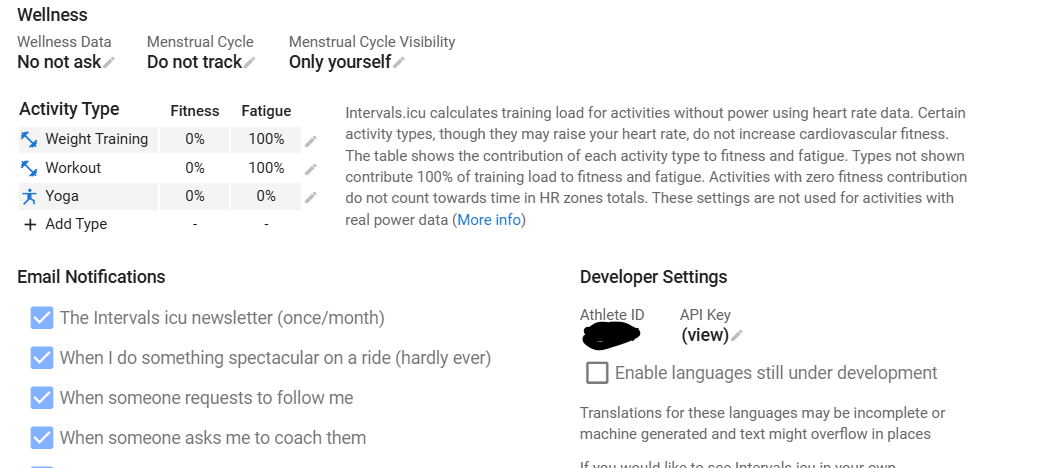
The API Key gives you access to your data. Insert it only in the connection form or in a personal chat with our bot after clicking "Connect Intervals". Do not publish the key in chats or screenshots. You don't need a password from Intervals.icu to connect.
2. Connect on the website
- Log in to FATRACING and open personal account → Settings.
- Find the block Intervals.icu.
- Insert the key in the field "API Key — API Key" and click "Check and save". The account will be determined automatically by the key: you do not need to search for and enter the athlete ID.
- Wait for the status "Intervals.icu enabled: access verified, data saved". In case of an error, the successful connection was not confirmed. Check out the tips below. Leave the profile open and switch to the tab with instructions so that the fields are not reset.
Now FATRACING Indoor TRAINER will be able to use the connection from your account. Open it under the same account in which you saved the key.
Or connect via a bot
- Open a private chat with the FATRACING bot and go to "👤 My profile" → "📡 Intervals".
- Click "Enable Intervals".
- Send the copied API Key in one text message. The bot will detect the Athlete ID automatically.
- Wait for the message "✅ Intervals.icu enabled". Future and past workouts are available in the Intervals menu.
To use the same connection on the site, log in via the same Telegram or link it in the settings of your FATRACING account. If you are connected to the site under a different account, the bot may not see this connection.
How to check that everything is working
After clicking "Check and save", the site should show "Intervals.icu connected: access verified, data saved". The next time you open the profile, the message "Connection saved" means that you have a saved key, not a new access check. In the bot, open "📡 Intervals" and click "📅 Future workouts" or "📚 Past workouts". Future training sessions are shown for the next seven days. If the plan in Intervals.icu is empty, the list will also be empty.
If it doesn't work out
- maintenance / technical work. Access verification failed: Intervals.icu reported a temporary unavailability. The new connection is not saved with this response. Leave the fields filled in and try again later.
- Access denied, 401 or 403. Copy the API Key again, verify that it is your account key, and reconnect.
- Invalid athleteId/apiKey. Insert the entire API Key, without quotes and explanatory text. The site determines the athlete ID automatically.
- The key is preserved, but there is no training. Check if they are in the Intervals.icu itself. Individual activities obtained only from Strava may not be available to other applications; try uploading the original FIT file to Intervals.icu.
- Network error or service is not responding. Try again later. The error message does not mean that the key is saved.
How to disable or replace the key
On the website, click "Delete" in the Intervals.icu block. In the bot — "Disable" in the Intervals menu. To replace it, insert a new key on the site and save it, or select "Change Intervals" in the bot.
Deleting a connection in FATRACING does not revoke the key in Intervals.icu. If someone else got the key, delete or reissue it in the Intervals.icu settings, then update the connection.
About creating a key: official Intervals.icu instruction.