How to connect Ride with GPS to FATRACING
Connect Ride with GPS to open your recorded rides and download FIT files in your FATRACING merchant profile. To connect, you need your regular Ride with GPS account. You don't need to enter API keys.
1. Check your recorded trips
Log in to Ride with GPS and make sure that the necessary trips are saved in your account. Your trip records will appear in FATRACING. The planned route and someone else's trip, which you just opened by clicking on the link, are not included in this list.
2. Connect your account
- Log in to FATRACING and open personal account → Settings.
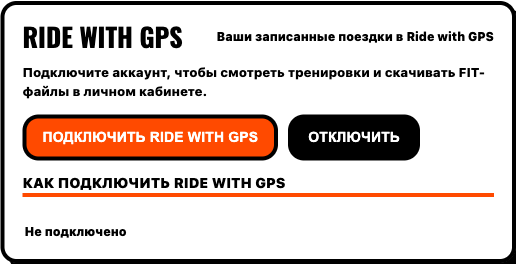
- In the block Ride with GPS click "Enable Ride with GPS".
- Log in to your account on the Ride with GPS page.
- Check the name of the FATRACING app and confirm the access permission.
- After returning to the cabinet, check the status "Connected" next to your name.
The Ride with GPS consent page may specify «Read and modify user content» — standard permission of the service to read and change the contents of the account. In this connection, FATRACING reads your trips and downloads files. The format of permissions is described in documentation Ride with GPS.
3. Find a ride and download FIT
- Click "To training" or open the "Training" tab.
- Find the block "Ride with GPS training". Button "Update" requests the list again.
- Check the name, date, distance and duration of the trip.
- For old entries, use the buttons "Next" and "Back" under the list. They appear when there are multiple pages.
- Click "Download FIT" For the desired trip.
The FIT will get the data that is in the Ride with GPS record. If heart rate, power, or cadence were not recorded, downloading will not add them. The connection does not transfer training plans to a bicycle computer.
If no trips appeared
- After logging in, "Not connected" again
- Start the connection again from the FATRACING settings and complete the access permission in the same browser. Do not leave the consent page open for a long time.
- There is a connection, but there is no necessary trip
- Check your account on the Ride with GPS website: the entry must belong to you and be a trip, not a route. Click "Refresh" and check the following pages of the list.
- The service asks you to reconnect
- Open the settings and click "Reconnect Ride with GPS", then confirm access again.
- FIT is not downloaded
- Check if the ride itself opens in Ride with GPS, update the list and download again. If the error persists, save the date of the trip and the error text for contacting support.
- There is no Ride with GPS block in the settings
- First, log in to FATRACING. If there is no block in the Settings tab, the connection is temporarily unavailable.
How to disable Ride with GPS
Open it Settings and click "Disable" in the Ride with GPS block. Wait for the "Not connected" status and check it after updating the page. The rides themselves will remain in Ride with GPS.
If an error is shown, the shutdown is not complete — repeat later. Instructions for other sources: Polar Flow and Intervals.icu.