How to connect Polar Flow to FATRACING
Connect Polar Flow to view your new workouts and download FIT files in your FATRACING merchant profile. You don't need to copy keys or create a developer application: just log in to your Polar account and allow access.
1. Prepare a Polar account
Make sure you enter Polar Flow and you can see the training there from your device. If the ride is not in Flow, first synchronize your watch or bike computer via the Polar app.
2. Allow connection
- Log in to FATRACING and open personal account → Settings.
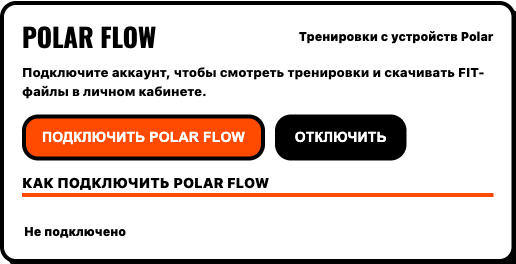
- Find the block Polar Flow and click "Connect Polar Flow".
- On the Polar page, log in to the account where the device saves training sessions.
- Review the permissions for FATRACING and confirm access. The Polar password is entered on the Polar website.
- Wait for the return to FATRACING. The status should appear in the Polar Flow block "Connected".
3. Check out a new workout
- After connecting, record the workout and wait for it to appear in Polar Flow.
- Open it personal account → Training or click "To training" in the connection block.
- Find "Polar Flow Training" and click "Update".
- Check the date, duration and distance. Click "Download FIT" to save the record.
Connection allows you to view completed workouts on the site and download files. It does not send training plans to the device. The history restriction is described in official Polar AccessLink documentation.
If the connection failed
- Returned to the office, but the status has not changed
- Update the settings. If the status is still "Not connected", start the connection again and complete it in the same browser where you opened FATRACING. The permissions page that has been open for a long time may become outdated.
- Connected, but the list is empty
- Make sure that the workout is uploaded to Flow after activation and is no more than 30 days old. Verify your Polar account and click "Update". Reconnecting does not open the old history.
- Polar asks to re-enter
- In the settings, click "Reconnect Polar Flow" and re-allow access. If access was revoked on the Polar side, this is necessary.
- There is no Polar Flow block in the office
- Check that you are logged into FATRACING and have opened the "Settings" tab. If there is still no block, the connection is temporarily unavailable; you don't need to enter keys in other fields.
How to disable Polar
In cabinet settings click "Disable" in the Polar Flow block and wait for the "Not connected" status. Then refresh the page and check the status again. Training in the Polar Flow itself will remain.
If an error appears instead of confirmation, the shutdown is not completed — repeat the action later. To work through another source, there is connection guide Intervals.icu.