FATRACING for computer · test version
Your cycling.
On the big screen.
Choose the next start, study the protocols and open the trip files in a separate application on Mac or Windows.
Download and runOn the phone? There is a version for Android
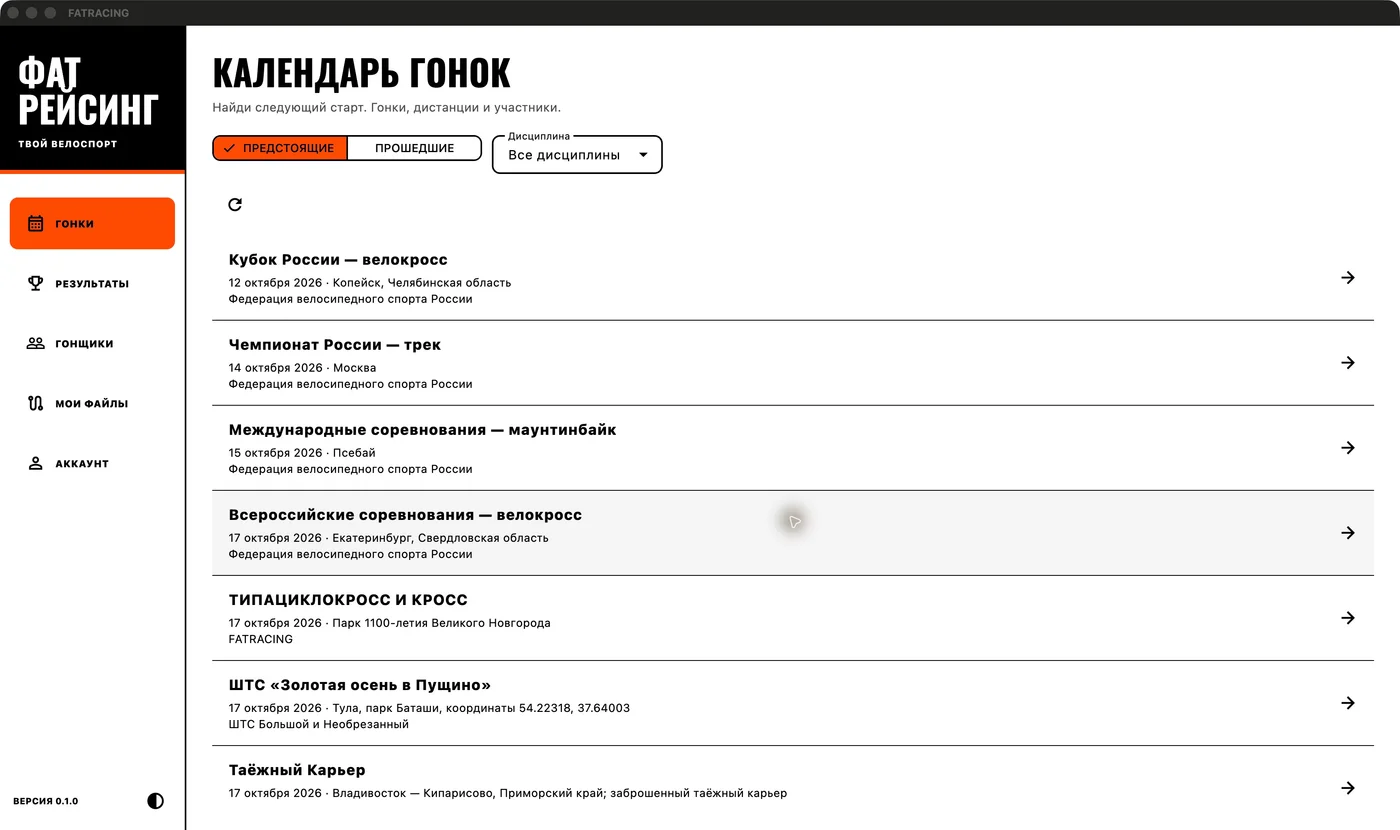
What he can already do
- Races and results
- Upcoming and past starts, discipline filter, race cards, schedule, participants and protocols by season and distance.
- Riders and account
- Search by name and team, profiles with a history of results. Login by code from the mail and a list of your requests. Registration and payment are opened in the browser.
- Your FIT and GPX
- Select a file from your computer: the application will show the route diagram, distance and available trip indicators. The file is processed on the computer and is not sent to the server.
Test version ·0.1.0
Choose your computer
macOS 12 and later · Apple Silicon and Intel
Version 0.1.0· 19.4MB · ZIP
The version is being prepared. The link will appear after checking the build.
This is an early test version: So far, there are no auto-updates, offline calendar, or indoor trainer connection. The GPX scheme is without a terrain map; the availability of power and time depends on the contents of the file.
How to run on Mac
- Download and unzip the ZIP.
Open the downloaded archive in the Finder. Inside the app FATRACING.app.
- Transfer it to "Programs".
Drag FATRACING to the "Applications" folder. You do not need to run the application from the archive.
- Open FATRACING.
The calendar and results are available without logging in. For your applications, open the "Account", enter the mail and the code from the letter.
Mac writes that the developer is not verified
The test version does not yet have a Developer ID signature and Apple verification. If you downloaded it using the button from this page and want to launch it, after the first attempt to open it, go to System Settings → Privacy and Security. Find the notification about FATRACING, click "Open anyway" (Open Anyway) and confirm the opening. Item names may vary slightly in different versions of macOS.
This is an application-specific permission. If the Mac reports malware or a corrupted file instead, send us a text message. Apple's instructions for opening apps.
How to run on Windows
These steps will come in handy when the Windows version archive appears above.
- Download ZIP for Windows.
In Explorer, right-click on the archive and select "Extract everything".
- Save the entire folder.
Leave the file together fatracing.exe, dll files and folder data. You can move the entire folder to a convenient location.
- Open it fatracing.exe .
For convenience, create a shortcut on the desktop. The application is launched from the unpacked folder, no Flutter installation is needed.
Windows shows SmartScreen warning
The test Windows version doesn't have the publisher's signature yet. If the warning refers specifically to the downloaded here fatracing.exe, in the regular SmartScreen window, you can click "More details" - > "Execute anyway". In a managed work system, this option may not be available — then contact the computer administrator.
If the protection detects malware, send us a text message. About SmartScreen Alerts.
Open your ride
Go to "My Files" - > "Open FIT / GPX" and select a file up to 32 MB. GPX will show the route and distance. Power will also appear in FIT if the device has recorded it.
You need the internet for the calendar, results and login. Opening a local file works without it.
What to add next?
Write down how you use the app and what's in the way. If something doesn't work, specify the system version, the application version, and the steps after which the error occurred.
Write to Telegram