Why the browser doesn't see the machine or heart rate monitor
First, determine where the connection stopped: the device selection does not open, the list is empty, the connection is terminated or there is no indication. Each case needs its own next step.
The device selection window does not open
Open it machine page in a separate supported browser, not inside the messenger. See the browser verification message. Click the connect button directly on the page: the search requires user action and a secure HTTPS connection.
For the first launch, use the current Chrome on Windows, macOS or Android. Do not assume the same support on all devices with the same browser name. Check the Bluetooth permission for the browser in the operating system settings and enable the adapter itself. Working conditions are described in Chrome documentation.
The window opened, but the list is empty
Check the power supply and wake up the sensor according to its instructions: for different devices, this is pedaling, wearing a chest strap or a separate button. Put the device closer to the computer and repeat the search.
Our choice of machine tool is looking for Bluetooth FTMS, Heart Rate Heart rate, Meter — Cycling Power or CSC speed/Cadence sensor. A device with only ANT+ will not appear in such a list. The fact that the system sees it in the general Bluetooth settings does not yet confirm a suitable sports profile.
The device is there, but it doesn't connect
Close the manufacturer's application, Zwift, and other applications or tabs that may have connected to the same device. For some models, the number of simultaneous Bluetooth connections is limited. Disconnect the device on the FATRACING page and select it again.
If this does not help, complete the current recording and only then restart the device according to the manufacturer's instructions. Change one condition at a time to make it clear what helped. Do not update the firmware and do not reset all settings in the middle of a workout for the sake of checking one tab.
Connected, but there is no data or they are not the same
Start pedaling and check the readings for a few seconds. Power, cadence and pulse are separate data; the absence of cadence does not necessarily mean that there is no connection with the machine.
A separate power meter has priority in terms of power and cadence. Check if the adjacent sensor is selected. A connected cadence sensor does not become a power meter: it transmits only the fields available to it.
If the watts are visible, but the resistance does not change, check the ERG, the target of the current interval, and support for FTMS control. Data acquisition and load management — different connectivity options.
There is power, but ERG is not working or the pedals are too heavy
Check two things separately: whether the desired power source is selected and whether the machine for controlling the load is connected. In FATRACING, control goes through FTMS; a sensor that transmits only watts does not replace a controlled machine. Then check the ERG switch and the goal of the current interval.
When cadence drops, ERG can increase resistance, trying to maintain the goal. For example, too high FTP overestimates the power of all intervals set in percent. Check the initial value before starting the session.
Wahoo describes the operation of the ERG and blocking when the cadence drops. In FATRACING, to complete a session, use 'Stop', leaving ERG enabled until you press: the service will send the trainer zero target power. Check the actual reduction in load. Pause stops the time count and does not reset the trainer's target itself. If the load remains, follow the equipment manual.
Resume with an affordable goal and smooth pedaling. The reaction time and order of unlocking depend on the model; do not try to correct this with sudden gear shifts. Go through a short check of the connection and saving the result by First lesson instructions. The section has been checked against the service's documentation and code; no specific machine testing has been conducted.
The connection disappears during the lesson
Record the moment of the break and what happened to the computer: sleep, closing the lid, switching the application, moving away from the sensor. Check the charge and repeat the short test with the device next to you, not allowing the computer to fall asleep.
After recovery, check if the time and readings continue to be updated. Do not consider a recording pass to be restored just because the device has reconnected. Before closing the page, try to regularly complete the lesson and download FIT.
What to send if the problem could not be solved
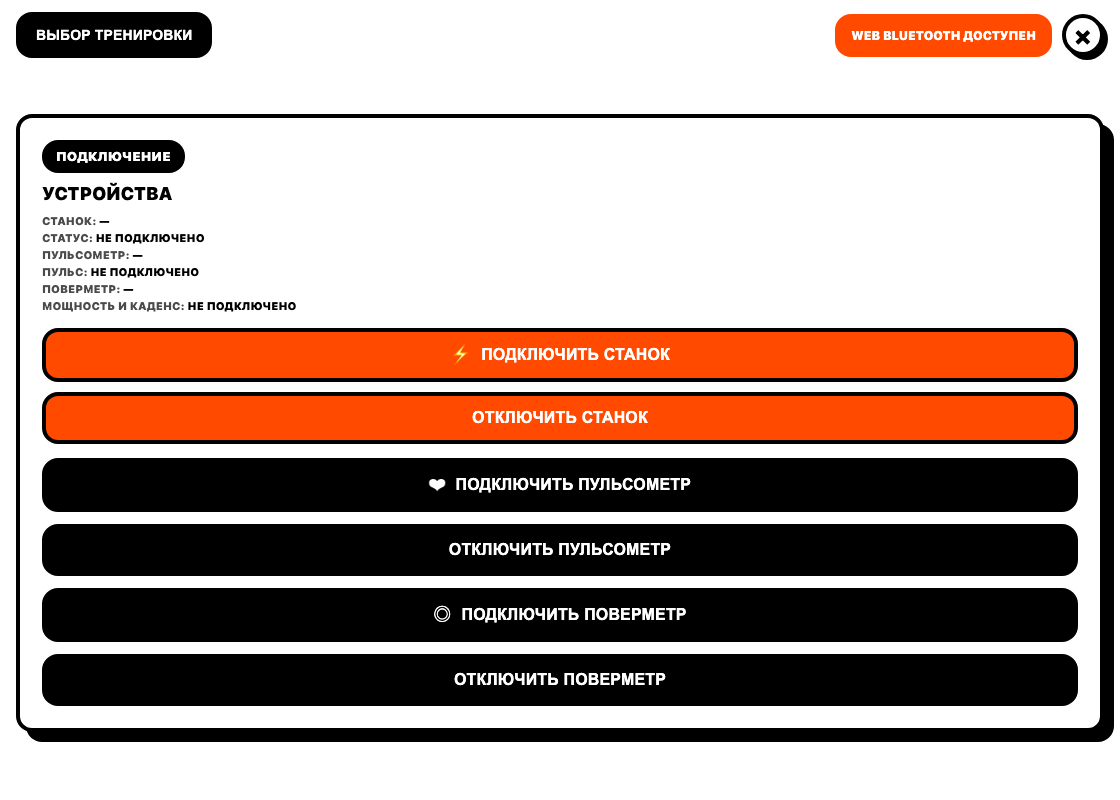
Through FATRACING contacts provide the device model, operating system, browser name and version, error text, and the step at which it occurred. A screenshot of the connection panel without private keys and passwords is useful.
Specify separately whether the device appears in the list and whether it works in the manufacturer's application. This will allow you to distinguish between the problem of the browser, the Bluetooth profile and the hardware itself.